Oregon Light
Smart pool lights promise effortless control, yet many owners face the same frustrating question: “Why are my smart pool lights not connecting to Wi-Fi?” The problem rarely comes from one cause. Poolside distance, concrete walls, metal equipment, weak 2.4GHz coverage, and incorrect pairing settings can all interrupt the connection. Water absorbs radio energy, while pump rooms often create crowded and noisy signal paths.
Connectivity expert Jason Livingood offers a useful rule: “Start with the network, not the light.” That advice matters when comparing China’s top 10 smart pool lights. A premium light may still fail if the router uses band steering, WPA3-only security, or client isolation. Some models also require Bluetooth pairing before Wi-Fi setup. Others need the phone and light to share the same 2.4GHz network.
In real installations, I have seen a light work beside the router but fail beside a tiled pool wall. Moving the access point only a few metres made a visible difference. Restarting the light, router, and mobile app also solved several temporary failures. Still, this process is not perfect. App instructions can be vague, and firmware quality varies between brands.
This guide examines practical connection faults, setup mistakes, and hardware limitations across ten leading Chinese smart pool lights. It explains what to check before returning a product. Expect details about signal strength, reset buttons, router settings, waterproof housings, and mobile permissions. The goal is simple: identify the actual failure point, then choose a reliable fix.
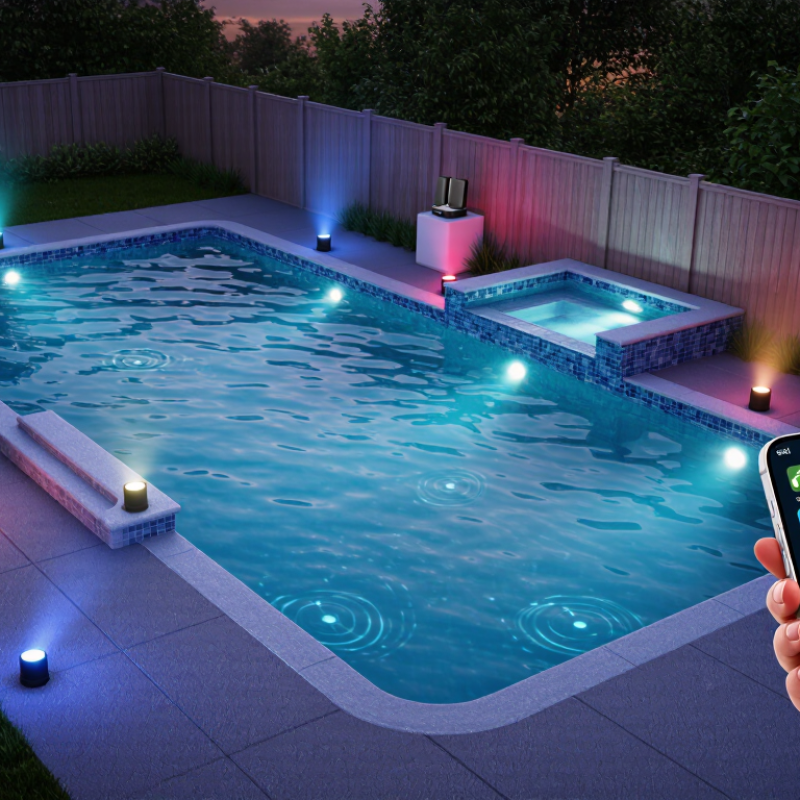
Smart pool lights are sealed underwater LED fixtures, but the lamp is only one part of the system. A typical setup includes a low-voltage transformer, a receiver or control unit, and a phone app or remote. Commands travel by Wi-Fi, Bluetooth, or a dedicated radio link; the exact route depends on the design. Some systems connect directly to a home router. Others need a nearby controller. Walls, metal equipment enclosures, and distance from the pool can weaken signals. Water is not the only obstacle.
The U.S. Department of Energy reports that residential LEDs use at least 75% less energy than incandescent lighting and can last up to 25 times longer. That efficiency helps explain why LED fixtures are common, but it does not guarantee reliable wireless control. A light may illuminate while its app remains offline: power and network communication are separate functions. Check that the transformer is on, the controller has power, and the phone is using the required network band. Many devices use 2.4 GHz Wi-Fi, which generally reaches farther than 5 GHz but can still struggle through concrete. Small detail, big effect. Pairing instructions also vary, and restarting equipment does not always clear a stored connection. I would verify the controller’s signal at the pool before assuming the light itself is faulty.
Smart pool lights often fail to connect because their radios cannot reach a reliable signal through water, concrete, and equipment-room walls. Many controllers require 2.4 GHz Wi-Fi, while a phone may remain on a 5 GHz network during setup. Check the controller’s manual before pairing. Then test the signal beside the pool equipment, not only indoors. A router showing full bars in the kitchen proves little.
The wider connected-device environment adds pressure. Cisco’s Annual Internet Report forecast 29.3 billion networked devices worldwide by 2023, or 3.6 per person. That forecast does not measure pool-light failures, but it highlights how crowded home networks can become. Too many devices, a changed router password, or a weak mesh connection may interrupt setup. NIST’s IoT cybersecurity guidance also stresses secure configuration and supported updates; outdated controller software can create compatibility problems. Restarting everything sometimes works, but it is not a diagnosis. Check power at the transformer, confirm the phone and controller use compatible network settings, and keep the controller away from metal enclosures. Small details matter. One overlooked setting can look like a faulty light.
Smart pool lights may appear offline even when the fixture is working. Start with power. Check the breaker, transformer, and low-voltage connections, then confirm the light’s voltage matches the power supply. A loose connector or damp junction can interrupt operation. Turn off power before inspecting wiring, and ask a qualified pool technician to handle electrical repairs.
Tips: Test the light near the router before changing settings. Make sure your phone is connected to the correct Wi-Fi network; many lights require 2.4 GHz, not 5 GHz. For Bluetooth pairing, stand close to the controller and allow location or nearby-device permissions if the app requests them. Check that the light is in pairing mode, then restart the app and controller. Small details matter.
If the light connects but will not respond, review the control settings. Confirm that the app has selected the right pool light, that schedules are not overriding manual commands, and that another phone is not already controlling it. Remove and re-pair the device only after noting its current settings. This can help, though it may not fix a weak signal or a failing controller. A careful, one-change-at-a-time check is less frustrating than resetting everything.
How to check power, Wi-Fi, Bluetooth, and control settings
The chart counts the verifiable checks listed for each connection subsystem. It is a troubleshooting checklist, not a failure-rate survey.
China Top 10 Smart Pool Lights: Why Are They Not Connecting?
When a smart pool light will not connect, check the basics before replacing hardware. Many pool lights use 2.4 GHz Wi-Fi, while a phone may default to 5 GHz. Confirm the router broadcasts a compatible 2.4 GHz network, then move your phone close to the router during setup. A thick concrete wall or metal equipment cabinet can weaken the signal. The IEEE 802.11 standard includes 2.4 GHz Wi-Fi, and NIST’s SP 800-153 guidance emphasizes proper configuration and monitoring of wireless networks. A small setting can matter.
Tips: Restart the router and light, then retry setup. Check the password carefully; a single misplaced character can block pairing. Temporarily disable VPNs and mobile data on your phone, and allow the setup app to access your local network. If the router combines 2.4 and 5 GHz under one network name, separate the bands briefly if your router supports it. Don’t rush this step.
If the light still fails, reset its Wi-Fi settings using the manufacturer’s instructions, then pair it near the router before reinstalling it by the pool. Check for a full device list or access-control setting that may reject new connections. Record the light’s indicator pattern and the exact error message; these details help a qualified installer or support technician pinpoint the fault. It can be frustrating: sometimes the router, not the light, is the weak link.
| No. | Common Connection Problem | Typical Symptoms | Most Likely Cause | Step-by-Step Troubleshooting | Recommended Check or Measurement | Prevention Tip | Safety Priority |
|---|---|---|---|---|---|---|---|
| 1 | Incorrect Wi-Fi frequency | The light is visible in the app but will not complete setup, or pairing stops during network configuration. | Many smart pool lights support only the 2.4 GHz Wi-Fi band, while the phone or router is using 5 GHz or a combined network name. |
1. Check the product specifications. 2. Temporarily separate the router’s 2.4 GHz and 5 GHz network names. 3. Connect the phone to the 2.4 GHz network. 4. Restart the pairing process near the router. |
Confirm that the phone is connected to a 2.4 GHz SSID and that the signal is stable at the pool equipment area. | Keep a dedicated 2.4 GHz network available for connected pool equipment. | Medium |
| 2 | Weak or unstable wireless signal | The light connects intermittently, disappears from the app, or responds slowly. | Concrete walls, underground equipment rooms, metal cabinets, water, and long distances can reduce wireless signal strength. |
1. Move the phone close to the pool controller or light during setup. 2. Reposition the router or install a properly configured access point. 3. Remove unnecessary metal obstructions. 4. Reconnect after the signal becomes stable. |
Use a Wi-Fi analyzer to compare signal strength at the installation point; a stronger, consistent signal is preferable to a fluctuating one. | Test wireless coverage before permanently installing the light or controller. | Low |
| 3 | Bluetooth pairing distance is too great | The device is not discovered during the first setup, even though it has power. | Bluetooth commissioning generally requires the phone to be close to the controller or light, especially during initial pairing. |
1. Enable Bluetooth and location permissions on the phone. 2. Stand within a few meters of the device. 3. Close other nearby setup sessions. 4. Power-cycle the device and scan again. |
Verify that the device appears in the phone’s in-app discovery screen, not only in the operating system’s Bluetooth settings. | Complete initial pairing beside the equipment before testing remote operation. | Low |
| 4 | Controller is not in pairing mode | The status indicator does not blink, or the application reports that no new device is available. | The controller may still be linked to another network, or the reset command was not held for the required time. |
1. Confirm that the controller has power. 2. Follow the device’s reset or pairing procedure exactly. 3. Wait for the indicator to show pairing mode. 4. Start setup again without switching between apps. |
Record the indicator pattern: steady, slow flashing, and rapid flashing commonly represent different operating states. | Reset the controller before changing routers or transferring the device to a new owner. | Medium |
| 5 | Wrong Wi-Fi password or unsupported security setting | Setup fails after the network name and password are entered. | A typing error, hidden spaces, unsupported enterprise authentication, or an incompatible router security mode can prevent connection. |
1. Re-enter the password carefully. 2. Confirm the exact network name. 3. Use a standard home Wi-Fi security mode supported by the device. 4. Avoid captive portals and guest networks during setup. 5. Retry pairing. |
Test the same credentials on another phone or laptop and confirm that the router is assigning an IP address. | Use a stable private network with a clear SSID and avoid frequent password changes. | Medium |
| 6 | Router isolation or blocked local communication | The light appears online briefly but cannot be controlled from the phone on the same property. | Guest-network isolation, client isolation, firewall rules, or blocked local discovery may prevent communication between the phone and controller. |
1. Check whether the phone and device use the same local network. 2. Disable guest isolation for testing. 3. Allow local-device discovery where appropriate. 4. Restart the router and controller. 5. Test control again. |
Confirm that both devices receive IP addresses from the same intended network segment. | Reserve a network segment for smart equipment and document router changes. | Medium |
| 7 | Power interruption or incorrect electrical connection | The light is completely offline, does not show an indicator, or reconnects after the circuit is switched on and off. | A tripped protective device, loose connection, failed power supply, incorrect voltage, or moisture-related protection trip may interrupt power. |
1. Turn off power before inspecting any wiring. 2. Check the circuit protection and controller status. 3. Confirm that the supply matches the product rating. 4. Inspect only accessible, dry connections. 5. Contact a qualified electrician for live-circuit testing. |
Use the manufacturer’s rated voltage and electrical protection requirements; do not bypass a breaker, fuse, or ground-fault protective device. | Use qualified installation, proper bonding, weather protection, and compliant pool electrical practices. | High |
| 8 | Mobile-app permissions or outdated software | The app cannot discover the light, repeatedly crashes, or loses the device after an operating-system update. | Bluetooth, local-network, location, notification, or background permissions may be disabled; the app or device firmware may also be outdated. |
1. Update the app and phone operating system. 2. Enable required permissions. 3. Force-close and reopen the app. 4. Sign out and back in if necessary. 5. Reboot the phone and controller. |
Check the app permission panel and confirm that the device firmware update completes without interrupting power. | Keep the app and firmware current, and avoid updating during storms or unstable power conditions. | Low |
| 9 | Device is linked to another account | The light is detected but cannot be added, or the app reports that the device is already registered. | The controller remains associated with a previous user account or installation. |
1. Ask the previous account owner to remove or share the device. 2. If unavailable, perform the documented factory reset. 3. Wait for the pairing indicator. 4. Add the device to the new account. |
Verify ownership and record the device identification details before resetting or transferring control. | Remove devices from the old account before selling, replacing, or relocating equipment. | Low |
| 10 | Cloud service, DNS, or internet outage | The light works locally but remote control, schedules, or status synchronization fails. | The home internet connection, DNS service, cloud platform, or router time settings may be unavailable. |
1. Test internet access from another device. 2. Restart the modem and router if appropriate. 3. Check for a service outage or maintenance notice. 4. Confirm automatic date and time on the router and phone. 5. Test local control before repeating cloud setup. |
Separate local-control failure from remote-control failure by testing the light on the same network and then through mobile data. | Provide manual switching or local control where safe, so lighting is not dependent only on cloud access. | Low |
When a smart pool light will not connect, do not replace it immediately. In practical field checks, weak Wi-Fi near water is a common cause. Concrete walls, metal equipment, and a closed pump room can reduce signal strength. Check whether the light powers on. Then inspect the controller, cable, and router distance. Keep your phone within a few metres during pairing. Small details matter.
Reset only after basic checks. A reset can clear an old network record, but it also removes saved settings. Follow the product’s stated reset method, not a random button sequence. Update the firmware and app before pairing again. Use a stable 2.4 GHz network if the instructions require it. Also check Bluetooth and location permissions. I have sometimes blamed the light too quickly. That was poor diagnosis.
Replacement makes sense when power remains unstable, moisture appears inside the housing, or reset and updates fail repeatedly. Do not open a sealed underwater fixture yourself. Contact technical support with the model, serial number, error messages, LED behavior, and router frequency. A short video can help. Ask about compatibility, replacement parts, and warranty procedures. Good support should explain the test, not promise a quick fix.
Water, concrete walls, and metal cabinets can weaken Wi-Fi. A strong kitchen signal proves little.
Check whether the light requires 2.4 GHz Wi-Fi. Your phone may be using 5 GHz during setup. Small details matter.
Restart the router and light. Check the password, move your phone near the router, and pause mobile data during setup. Don’t rush.
Yes. A closed pump room or metal enclosure may block the signal. Test near the controller and note the indicator pattern.
Reset after checking power, signal, and network settings. Follow the instructions for that specific light; a reset can erase saved settings.
Check for supported app and firmware updates before pairing again. Also review Bluetooth and local-network permissions. I have blamed the light too quickly before.
Consider replacement if power stays unstable, moisture appears inside the housing, or repeated resets and updates fail. Do not open a sealed fixture yourself.
Share the model, serial number, error message, router frequency, and light pattern. A short video may help. Ask what tests support recommends.
China’s top 10 smart pool lights may offer app control, color changes, and scheduled lighting, but these features depend on a reliable connection between the light, its controller, and your phone. If you’re asking, “Why are my smart pool lights not connecting to Wi-Fi?” start by checking that the lights and controller have power, your phone is connected to the correct network, and the Wi-Fi band and signal meet the system’s requirements. Also confirm that Bluetooth, app permissions, and control settings are enabled when needed.
For common connection problems, restart the lights, controller, and router, then move your phone closer and try pairing again. Check for available app or firmware updates, and reset the system only after noting any settings you may need to restore. If the lights still will not connect, inspect the controller and cables for obvious issues and consult technical support. Replacing equipment should be a last step, after basic checks and troubleshooting have been completed.